OralAI Call Alerts by text
OralAI Call Alerts are texts to dental office staff about calls OralAI answered for their practice, such as an urgent call that needs a callback. Your practice adds you in the OralAI app, with your agreement. Here is how that works, what the texts say, and how to stop them.
- Program
- OralAI Call Alerts
- Sent by
- OralAI
- Who gets them
- Staff of dental practices that use OralAI, added by their practice with their agreement
- What they say
- Which call came in, when, and what it was about, with a link to the call in the OralAI app. Your office chooses which calls send a text: urgent calls, every call, or calls that match its own notifications.
- How often
- Message frequency varies with your practice’s call activity
- Cost
- Msg & data rates may apply
- Stop or get help
- Reply STOP to opt out, HELP for help
- Status
- Call Alerts are moving to a new text number registered with US carriers. The welcome text, the alert format, the replies, and asking you first in the words below all start with that move.
How you opt in
You say yes to text alerts first
Text alerts are only for staff who want them. Before your number is added, the person adding it (someone at your practice, or OralAI’s team during setup) asks you in person or by phone, in the words below. Your number is added only if you say yes. Under our Customer Agreement, your practice also confirms that each person it signs up agreed.
Your practice adds your mobile number in the OralAI app
Someone at your practice adds it under Notifications, then Recipients, or while editing a notification. During setup, OralAI’s team can add it for your practice. Wherever a number is entered, the consent wording sits right under the phone number field, as shown below.
You get a welcome text
Right after your number is added, OralAI sends you one text that names the program, says how often texts come and that msg & data rates may apply, and tells you to reply HELP for help or STOP to opt out. If you don’t want the alerts, reply STOP. The text is shown below.
Your practice chooses which alerts you get
Texts start only after your practice puts you on a notification, such as Urgent Calls. To stop them, reply STOP to any alert, or have them turned off in the OralAI app.
On the call
- Your practice
- “Do you want OralAI Call Alerts by text at this number? They're texts from OralAI about calls OralAI answers for your practice. Message frequency varies. Message and data rates may apply. Reply HELP for help, or STOP to opt out. OralAI doesn't share your number for marketing.”
- You
- “Yes.”
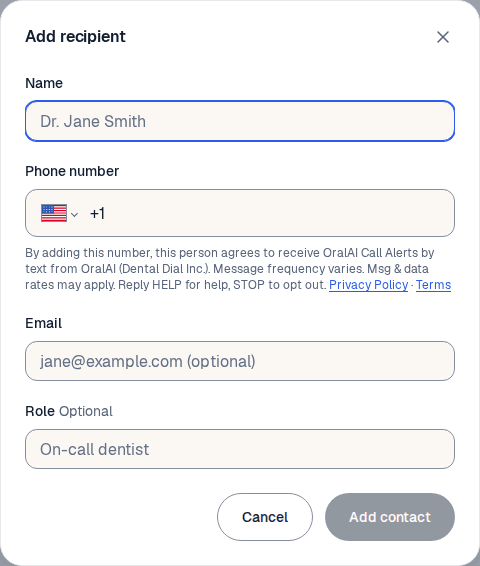
The consent wording, word for word
By adding this number, this person agrees to receive OralAI Call Alerts by text from OralAI (Dental Dial Inc.). Message frequency varies. Msg & data rates may apply. Reply HELP for help, STOP to opt out. Privacy Policy · Terms
What the texts look like
The welcome text, then two alerts, with a made-up practice and caller. The first line of an alert says which of your practice’s notifications the call matched.
Text received: OralAI Call Alerts: You're signed up for texts about calls OralAI answers for your practice. Msg frequency varies. Msg & data rates may apply. Reply HELP for help, STOP to opt out.
Text received: [OralAI Smart Alert - Urgent Calls] OralAI demo office Caller: +15550100142 Time: 11/04/2026 @ 9:42pm PT Summary: Caller has a swollen jaw and severe pain since this afternoon, and asked for a call back tonight. https://app.oralai.com/calls/k7m2p9qa?utm_source=sms Reply STOP to opt out.
Text received: [OralAI Call] OralAI demo office Caller: +15550100187 Time: 11/04/2026 @ 10:15am PT Summary: Caller asked to move a cleaning to next week. The new time was booked. https://app.oralai.com/calls/r4t8wbn3?utm_source=sms Reply STOP to opt out.
How to opt out or get help
Reply STOP to any alert and the texts stop. Reply START to turn them back on. Reply HELP for help. You can also stop them in the OralAI app: anyone at your practice who signs in can turn off your texts on a notification, take you off a notification, or deactivate you to stop every alert. Or ask your practice to do it for you.
- Reply STOP
- Stops the texts from that number. You get one last text:OralAI Call Alerts: You're unsubscribed and will receive no further messages. Reply START to resubscribe.
- Reply START
- Turns them back on after a STOP. You get:OralAI Call Alerts: You're signed up for texts about calls OralAI answers for your practice. Msg frequency varies. Msg & data rates may apply. Reply HELP for help, STOP to opt out.
- Reply HELP
- Gets you this reply:OralAI Call Alerts: For help, email hello@oralai.com or visit oralai.com/sms. Msg frequency varies. Msg & data rates may apply. Reply STOP to opt out.
- Email us
- hello@oralai.com
We do not share, sell, or provide your mobile phone number or messaging consent data to third parties or affiliates for marketing or promotional purposes. Read the full program terms in our Terms and how we handle your information in our Privacy Policy. Carriers are not liable for delayed or undelivered messages.
Looking for another kind of text? OralAI Demo Texts